Time off
Recording vacation, sick time, and other leave, and where it shows up.
My Schedule is your own calendar: the shifts you are scheduled for, the time off that has been approved, and any request still waiting on an answer. That includes vacation, sick time, and whatever other types your site uses. Company holidays show there too, but you never request one: your company sets them under Settings, and a paid holiday lands on your time card on its own.
Requesting time off
- Press Request Time Off, or click the day you want off on the calendar. Pick the type, the first and last day, and the hours per day (8 for a full day, 4 for a half day).
- Add a note if there is anything your manager should know, then send it.
- The request shows as Pending until your manager approves or denies it. You can cancel it yourself while it is still pending.
A request can cover up to 31 days at a time. Longer leave is a conversation with your manager rather than a form. If a request is denied, the reason your manager gave shows under its status.
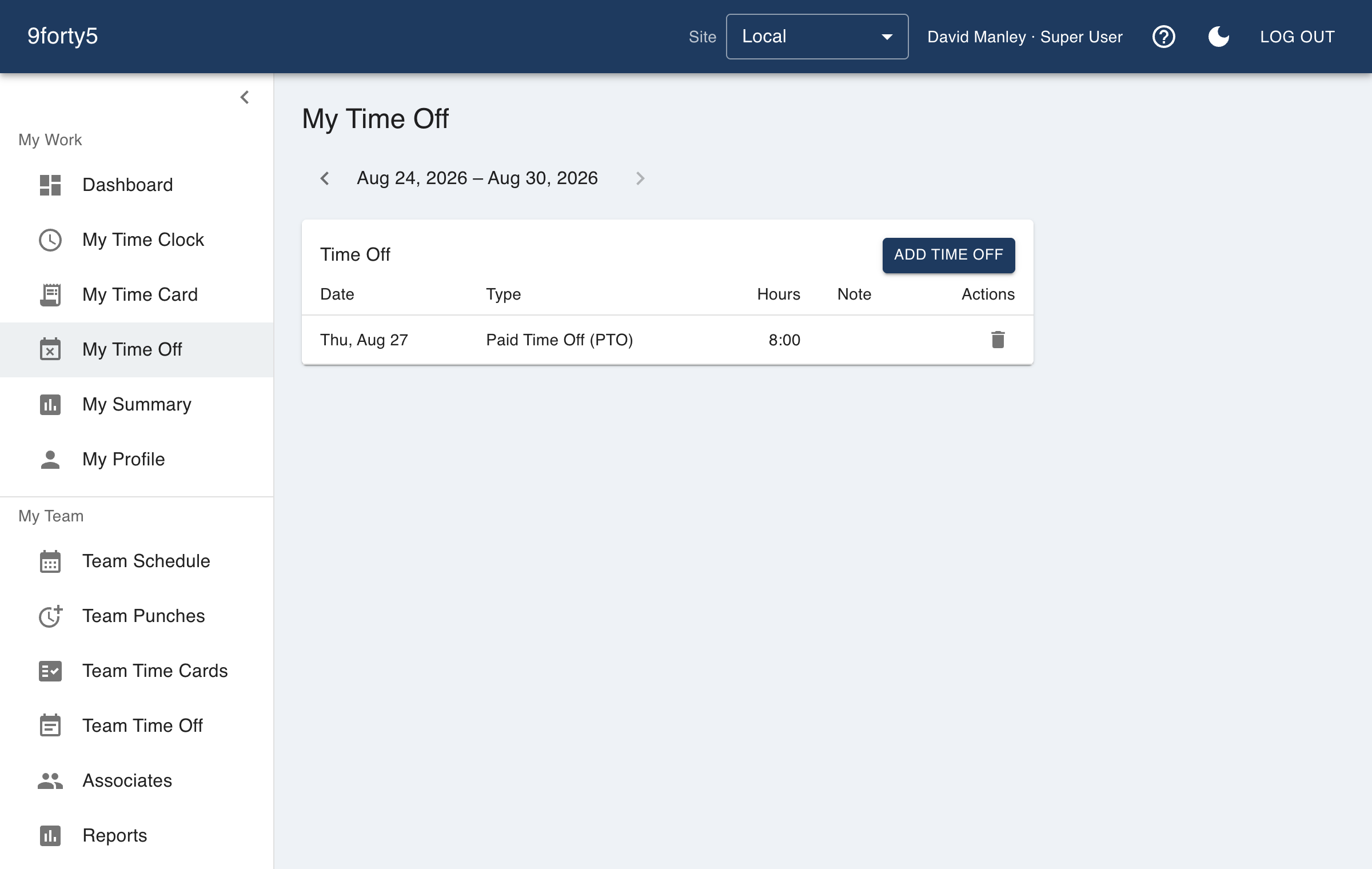
Approved time off lands on your time card for the day it covers, marked with its own time type, so a week with a vacation day still totals correctly. The calendar shows a month at a time (or a week, or a plain list); use the arrows to step back through past months or ahead to upcoming ones, which is where a request for next month ends up once it is approved. Managers decide requests and see the whole team's leave on Team Time Off, and can book time off for an employee directly without a request - that is the only place time off is entered without one.