Location-based clock-in
Checking that punches happen at the site: setup, modes, and reading the flags.
Geofencing checks each employee's own clock-in against the site's location. It is set per site under Company Settings, on the Site Setuptab, under Preferences. Pick the site at the top of that tab first - the fence belongs to one site, not to the company.
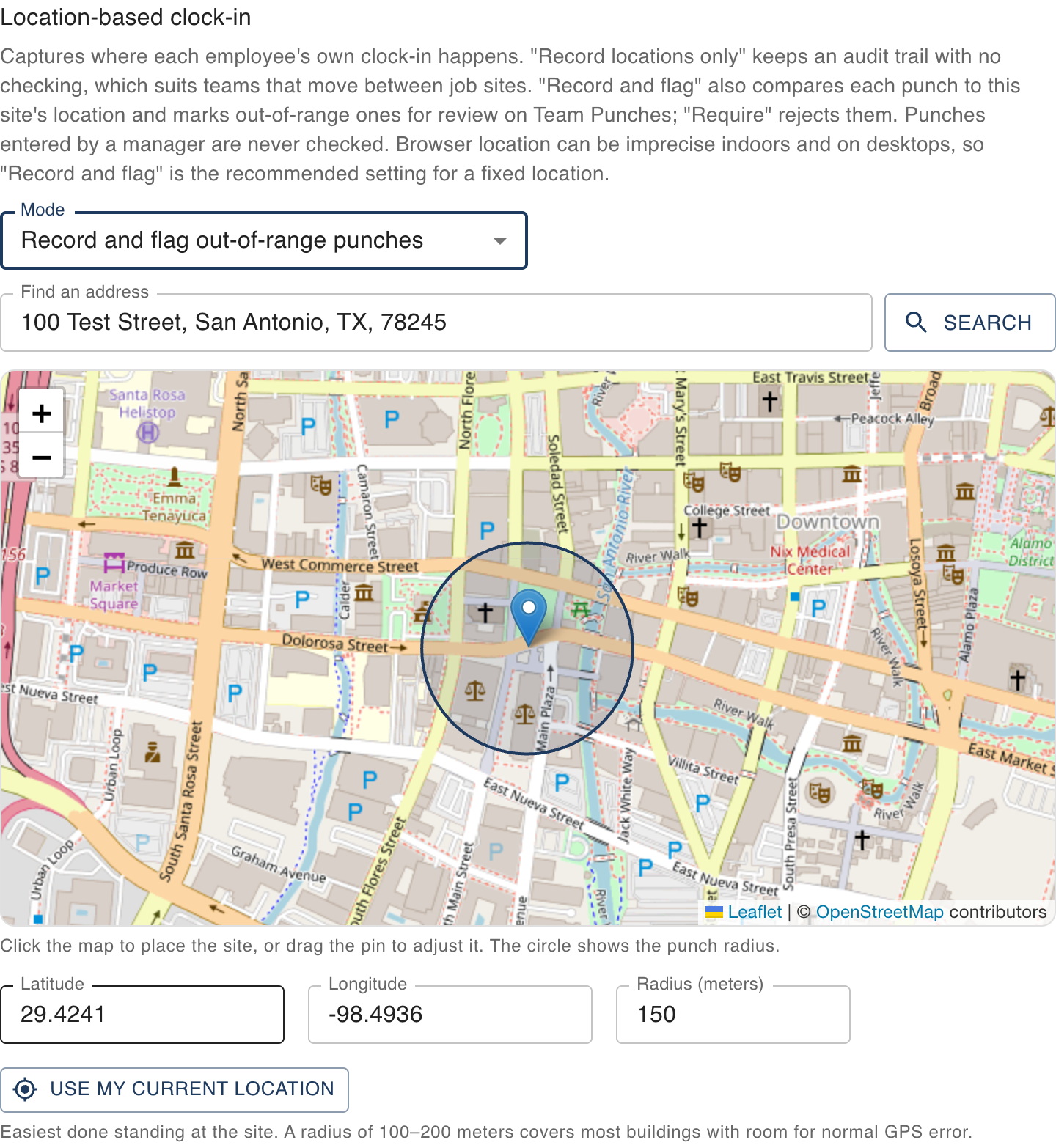
- Pick a mode. Record locations only captures where every punch happens without checking anything, which suits auditing and teams that move around. Record and flag also compares each punch to the site's location and marks out-of-range ones for review; it is the recommended setting for a fixed location. Require rejects punches from outside the radius outright.
- Place the site on the map. The search box is pre-filled with the site's street address, so pressing Search usually lands the pin right away. You can also zoom in and click your building, drag the pin to fine-tune it, press Use my current location while standing at the site, or type coordinates directly into the fields.
- Set the radius. The circle on the map shows exactly what it covers. A radius of 100 to 200 meters covers most buildings with room for normal GPS error.
- Save. From then on, the time clock asks each employee’s browser for its location at punch time.
Reading the flags
On Team Punches, a punch from outside the radius shows an Outside geofence chip. Hover over the chip to see the coordinates. A punch where the browser reported nothing shows No location instead. Punches you enter as a manager are never checked, because you are usually not standing at the site.
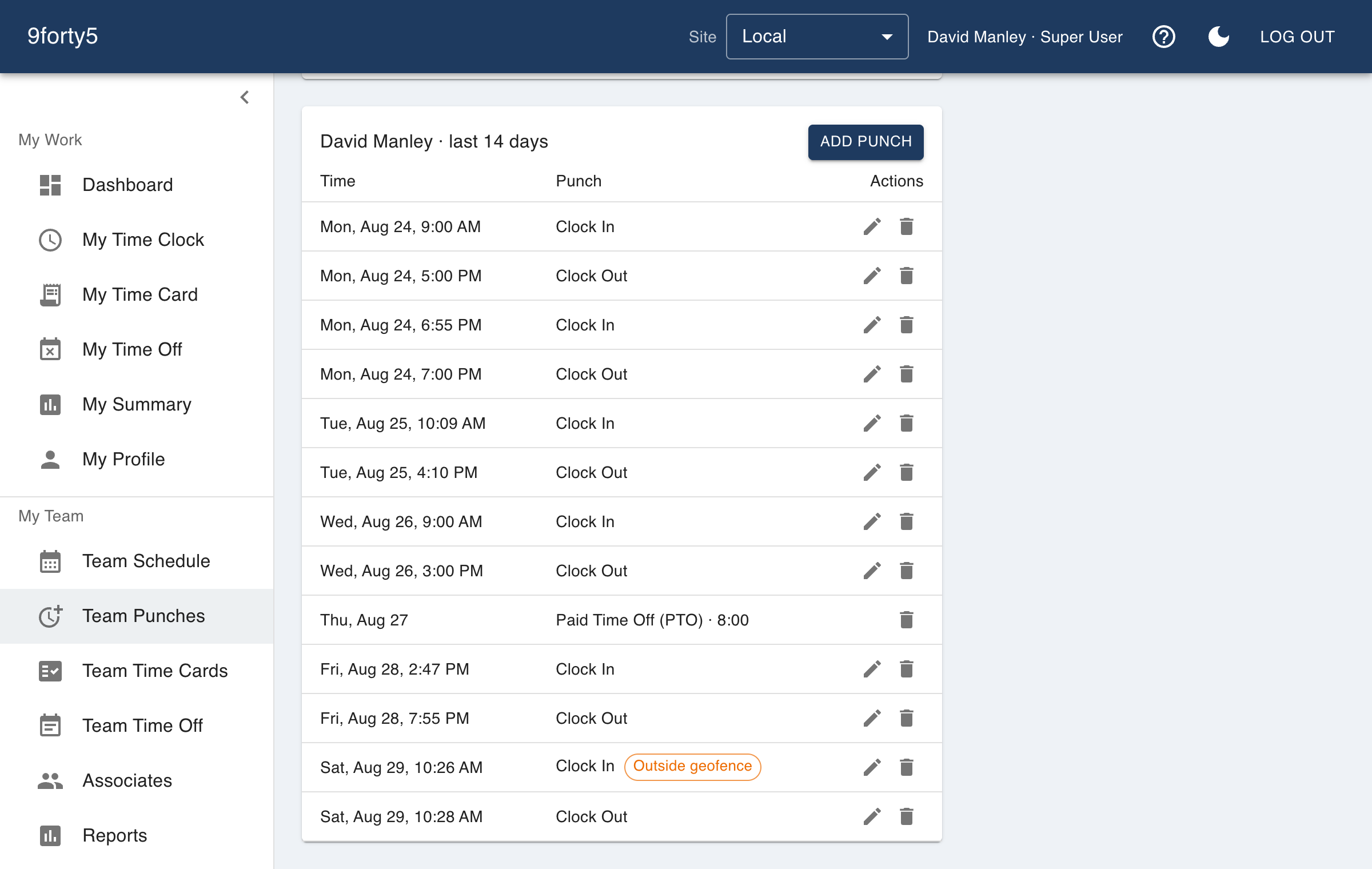
Seeing where a punch happened
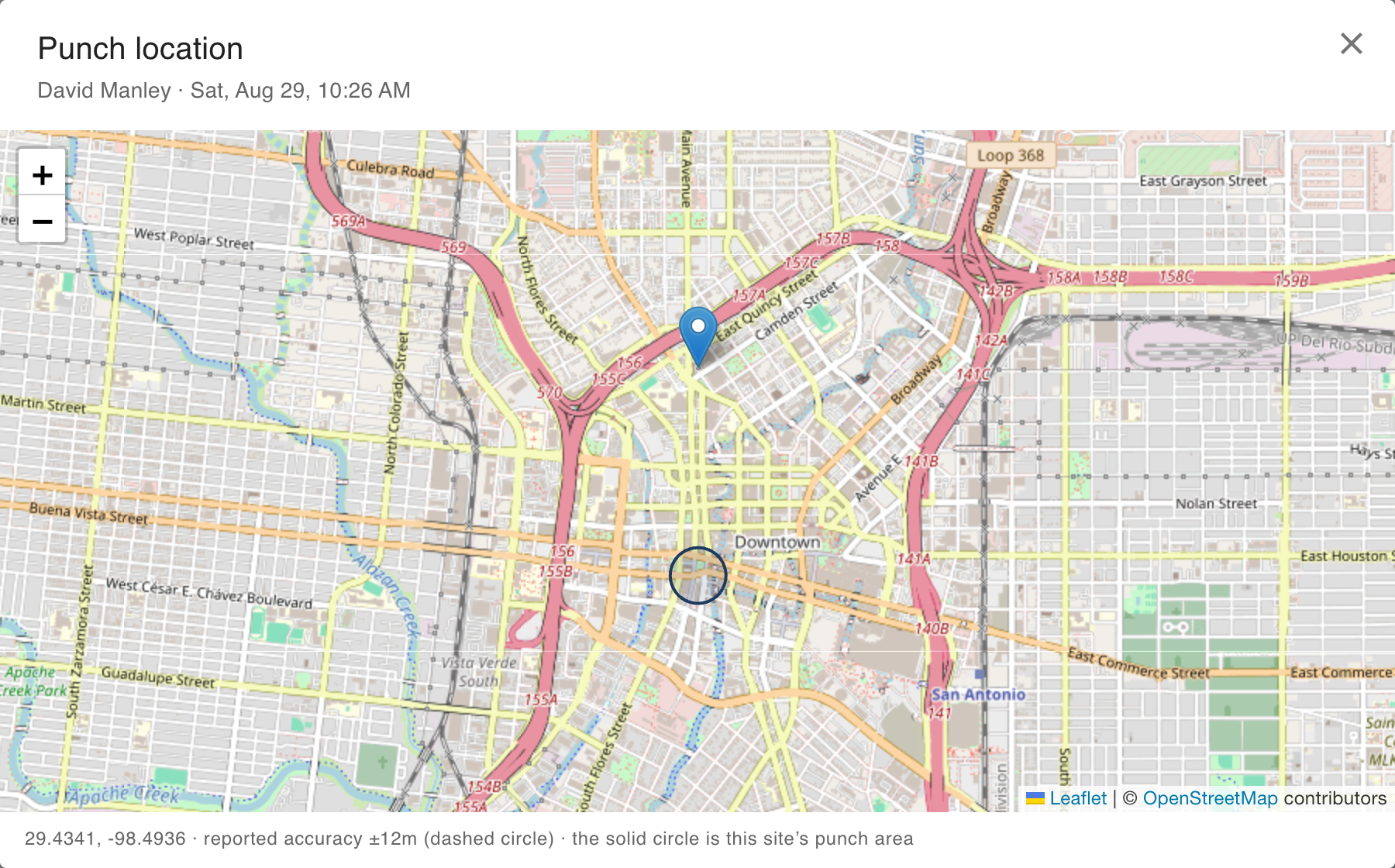
Every punch that carries a location shows a small map pin on Team Punches, whether or not it was flagged. Click the pin to open a map of exactly where the punch was recorded. A dashed circle shows the accuracy the employee's browser reported, which tells you how much to trust the reading, and if the site has a punch area configured, that circle is drawn too so you can see the two together.
If your team moves between job sites
A construction crew or a mobile service team does not need a new site for every job. The simplest setup is Record locations only: every punch stores where it happened, you audit on the map whenever you like, and there is no fence to maintain and no false flags to explain.
If you want the flags too, keep one site in Record and flag mode and move its fence when the crew moves. Whoever arrives first can open Site Setup and press Use my current location, or you can search the new job's address from the office before the week starts. Punches from previous weeks keep the verdict they were given at the time, so moving the fence never rewrites history.